· 1832 words · 9 min
🔐 Bybit Security 2026 — Complete Checklist to Lock Down Your Account (3 Settings Block 90% of Threats)
Step-by-step Bybit security checklist for 2026 — authenticator 2FA, anti-phishing code, withdrawal whitelist, trusted devices, storage diversification. The 5-minute setup that stops most account takeovers.
Honest review. Some links are affiliate links: same price for you, a small commission for the project.
⚡ Quick answer — three settings that block 90% of personal threats
Five minutes. Three settings.
- Google Authenticator 2FA (not SMS)
- Anti-phishing code (filter against fake Bybit emails)
- Withdrawal address whitelist (24-hour cooldown on new addresses)
Set these three and you've blocked the vast majority of account takeover attacks targeting retail users. Everything else in this guide is layered protection on top.
🎁 Sign up to Bybit and unlock up to $30,020 in Welcome Rewards
⚠️ Disclosure: this article contains an affiliate link. If you register through it I earn a commission and your fees stay the same. I configured a real Bybit account with every setting in this checklist before publishing.
🩸 Why this matters now?
The attacks targeting crypto holders in 2026 are not the brute-force password attempts of 2018. They're SIM swaps, AI-generated phishing emails indistinguishable from real Bybit communications, fake support agents in Telegram, browser extensions that hijack clipboard, and ad-network domains that look like the real exchange URL.
Security matters more than any trading strategy or AI bot. A 30% gain wiped out in one social-engineering attack erases six months of disciplined work. The checklist below takes five minutes to apply and saves potentially everything in your account.
By the way, this is the same logic exchanges use internally — they don't try to make security «optional and convenient». They make the secure path the default and lock you out until you complete it. The user-side checklist below mirrors that institutional thinking on a personal scale.
🛡️ Bybit security architecture — what's available
Bybit groups security settings into two tiers — Basic Protect (account login, settings changes, password recovery) and Advanced Protect (transaction approval, fund movements, password for withdrawals).
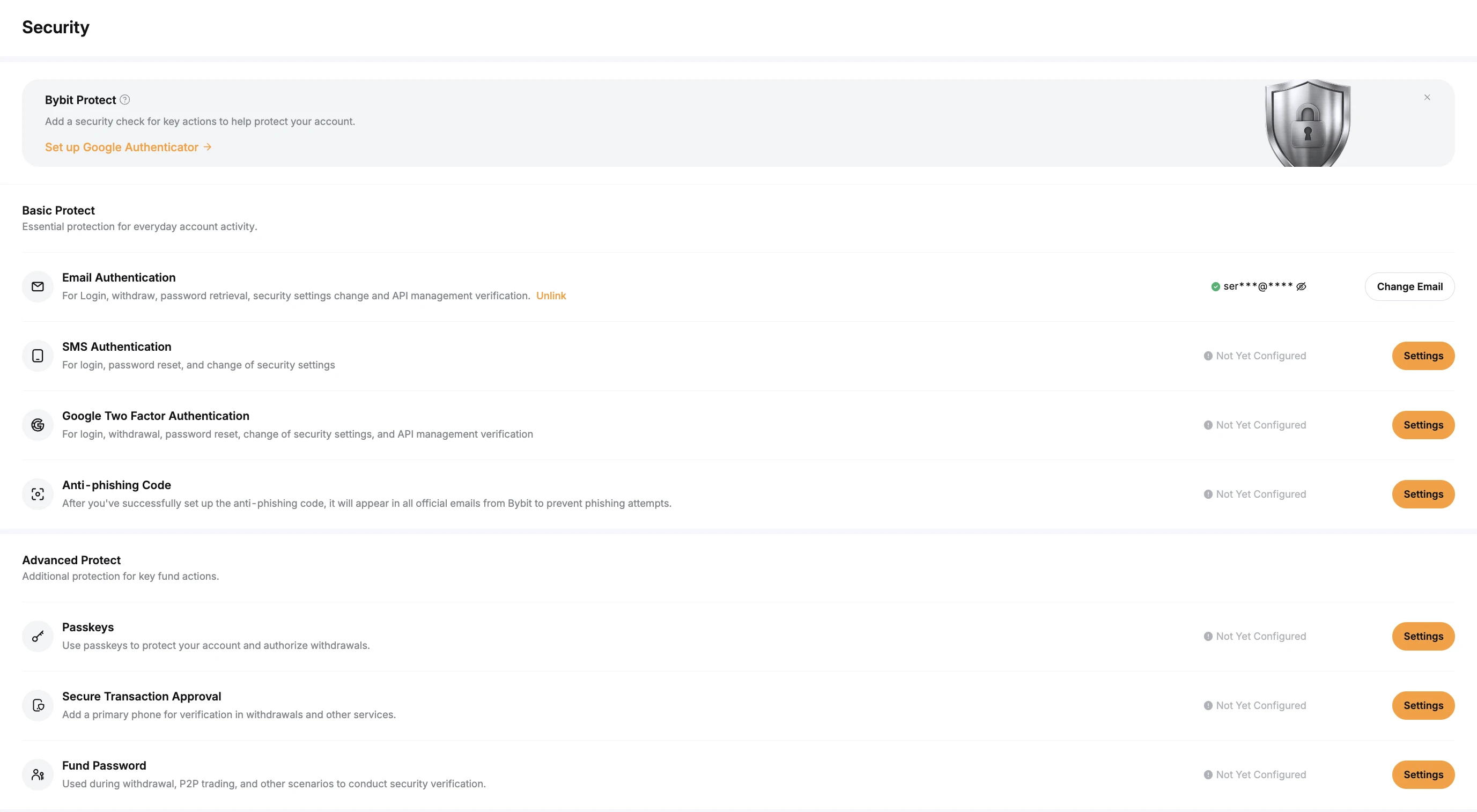
Basic Protect options:
- Email Authentication
- SMS Authentication
- Google Two Factor Authentication
- Anti-phishing Code
Advanced Protect options:
- Passkeys
- Secure Transaction Approval (linked phone)
- Fund Password (separate password for withdrawals)
The three settings I recommend as mandatory live in Basic Protect: Google 2FA, Anti-phishing Code, and (covered in its own section below) Withdrawal Address Whitelist. The rest is hardening for high-value accounts.
🔐 Setting #1 — Google Authenticator 2FA (not SMS)
This is the single most important setting in the whole list.
Open Account → Security → Google Two Factor Authentication → Settings.
You'll see the 2FA setup modal:
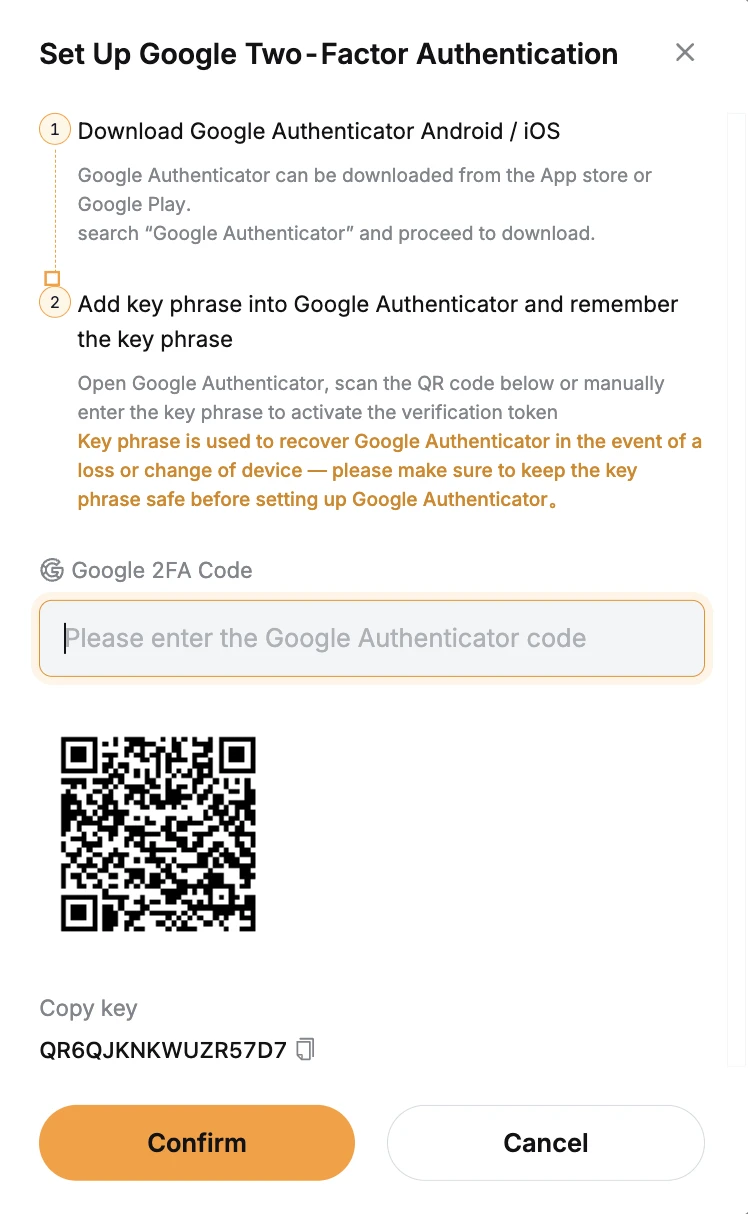
The setup flow:
- Download Google Authenticator on your phone (iOS App Store or Google Play). Alternatives: Authy, 1Password's built-in TOTP, Microsoft Authenticator — anything that supports standard TOTP works
- Scan the QR code on the Bybit setup screen OR manually enter the key phrase shown below the QR (in the screenshot it's
QR6QJKNKWUZR57D7— your real one will be different and unique to you) - Critically important: write down the key phrase on paper. Do not screenshot, do not save in cloud notes, do not email to yourself. If you lose your phone and don't have the key phrase, recovering 2FA requires KYC support tickets and 24–72 hours of account downtime
- Enter the 6-digit code from Authenticator → Confirm
By the way, why specifically authenticator and not SMS: SMS codes travel through the cellular network. SIM swap attacks (where an attacker convinces your mobile provider to transfer your number to their SIM) are common enough that the major US carriers have published warnings about them. SMS 2FA is essentially «slightly better than nothing». Authenticator 2FA generates codes locally on your device with no network in the loop — there's no SIM to swap.
📨 Setting #2 — Anti-phishing code
This is the cheapest, most effective phishing defense most people have never set up.
Open Account → Security → Anti-phishing Code → Settings.
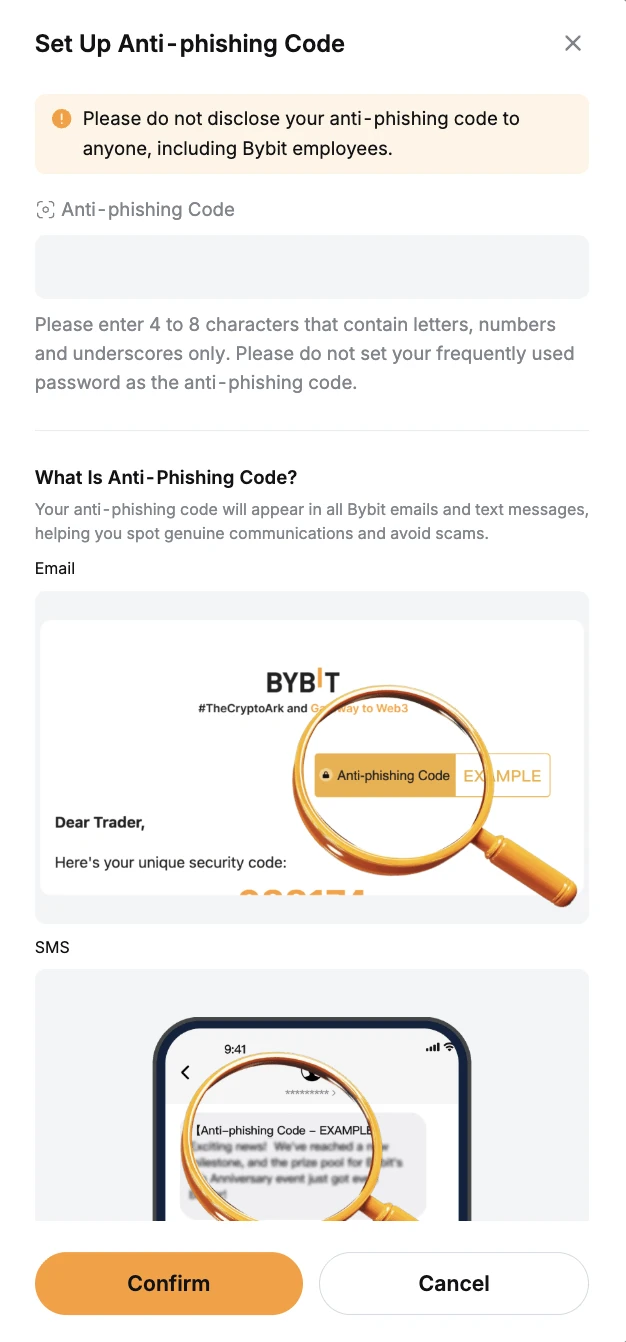
You enter a 4–8 character code — letters, numbers, and underscores only, unique to you. From that moment, every legitimate Bybit email and SMS will include this code prominently. If you ever receive a message claiming to be from Bybit and the code is missing or different, it's a phishing attempt.
Examples of what changes:
- Real Bybit email about account activity: code visible in the corner
- Real Bybit security notification SMS: code at the start of the message
- Phishing email pretending to be Bybit: code is missing — the attacker doesn't know it
The trick is muscle memory. After a few weeks of seeing your code in every Bybit message, you'll instinctively check for it. The day you receive a perfect-looking «Bybit» email without the code, you'll notice immediately.
Important rules:
- Don't make the code your usual password or anything obvious
- Don't share it with anyone — including people claiming to be Bybit support
- Don't screenshot the message that contains it (attackers who get email access can scan for screenshots of «code» fields)
- Don't change it casually — the muscle memory is the defense
💸 Setting #3 — Withdrawal address whitelist
The slow-walk defense against compromised accounts.
Open Account → Withdrawal → Address Management → enable Withdrawal Address Whitelist toggle.
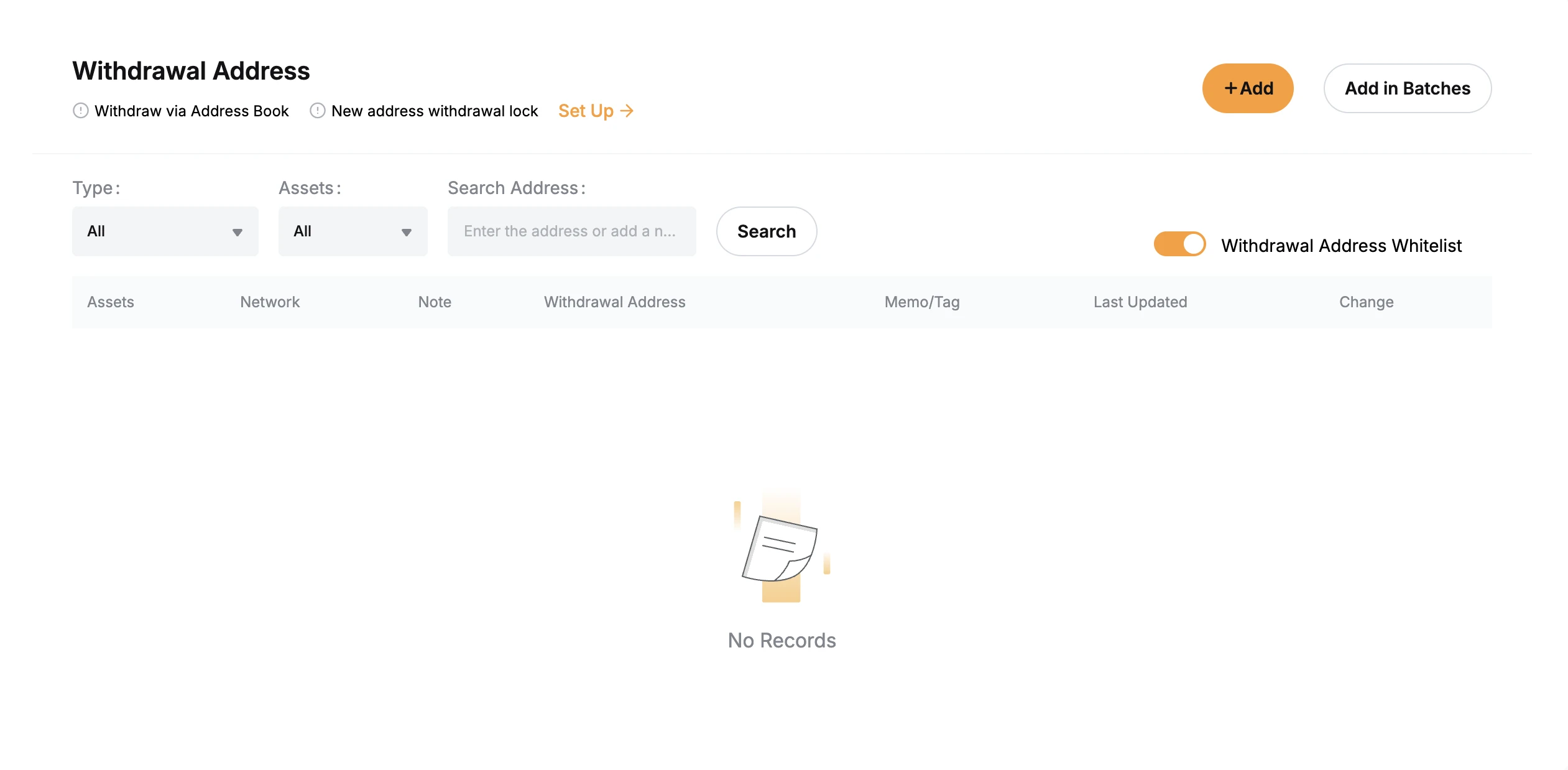
When the whitelist is on:
- You can only withdraw to addresses you've pre-added
- Any new address added to the list has a 24-hour cooldown before it becomes usable
- Removing the whitelist also has a cooldown (you can't disable it instantly during an attack)
The defense logic: even if an attacker gets full account access — password, 2FA code, anti-phishing trick somehow defeated — they cannot drain funds instantly. They'd have to either withdraw to an already-whitelisted address (your own wallets, which they can't redirect) or wait 24 hours after adding their address, during which time you or Bybit's automated monitoring will detect the breach.
How to set it up properly:
- Pre-add your own external wallets to the whitelist (hardware wallet receive addresses, your other exchange deposit addresses, your stable USDT trading wallet). Label each one clearly
- Enable the toggle
- Done. Whitelist now blocks all unfamiliar destinations
If you genuinely need to withdraw to a brand new address (paying a freelancer, buying a service), accept the 24-hour wait. It's a feature, not a bug.
📱 Trusted devices and login monitoring
Once 2FA + anti-phishing + whitelist are set, the next layer is knowing where your account is being accessed from.
Open Account → Security → Trusted Devices Management.
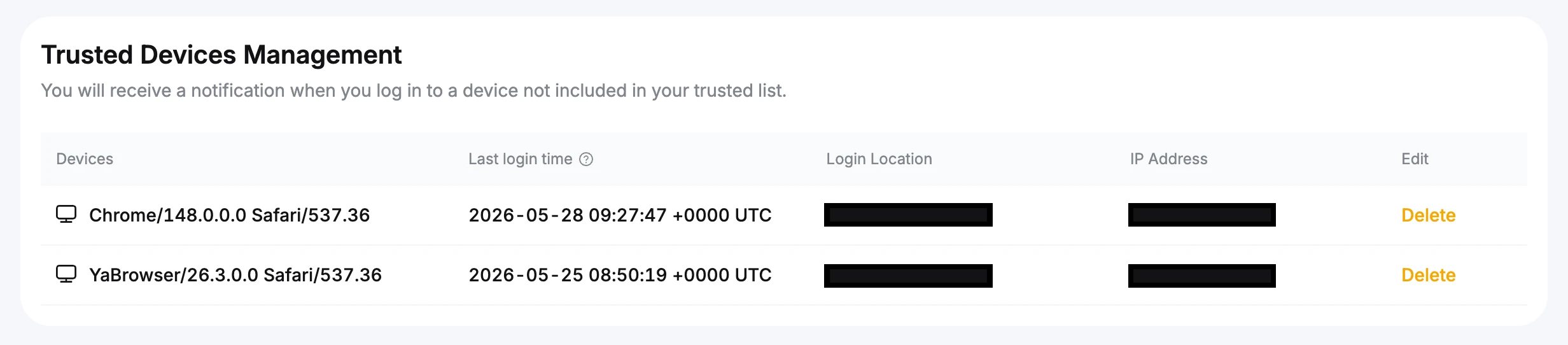
You'll see every device that has logged into your Bybit account, with browser fingerprint and last login time. Bybit's policy: you receive a notification every time someone logs in from a device not in this list.
Best practice:
- Review the list monthly — anything unfamiliar, click Delete to remove and force re-authentication
- If you see a login you don't recognize, immediately: change password → revoke 2FA → contact support
- Don't keep dozens of trusted devices accumulated over years. Trim the list. Stale entries are attack surface
By the way, the notification email is where your anti-phishing code (from Setting #2) becomes critical. Login notifications are exactly the email phishers fake most often — «we detected a suspicious login, click here to secure your account» is the classic bait. With anti-phishing code on, you check the corner of that email instantly.
⚠️ What NEVER to do
The fastest way to lose an account is doing one of these even once:
- Don't use SMS-only 2FA. SIM swap is a real, documented attack against crypto holders
- Don't screenshot your 2FA backup key. Phones get backed up to cloud services, screenshots end up in albums, albums get shared. Write the key on paper, store the paper securely
- Don't click ads in search engine results when looking for Bybit. Phishing domains buy Google Ads with names like «bybit-secure-login.com». Type the URL or use a saved bookmark
- Don't reuse the same password between your exchange and your email. If one leaks in a third-party breach (and they do, constantly), the other falls within hours
- Don't keep 100% of your crypto on one account. Even with the perfect security stack, single-platform risk is real (exchange insolvency, regulatory action, internal compromise). Split between exchange and self-custody hardware
- Don't paste seed phrases or recovery keys into ChatGPT, web forms, or anywhere not on the original setup screen. Ever
- Don't accept «Bybit support» contacting you first via Telegram or DM. Real support only responds in the in-app ticket system after you open one
🥶 Storage diversification — what to keep where
A complete security model treats Bybit as «active trading capital», not a wallet.
On Bybit:
- Active trading float — what you'd be willing to put through 1–3 positions this week
- Stablecoin reserves for opportunity entries
- Anything you're using for Bybit Earn / staking / structured products
Off Bybit, in cold storage (hardware wallet):
- Long-term BTC and ETH holdings you don't actively trade
- Anything beyond ~$5,000 that's not earmarked for trading in the next 30 days
- Recovery / emergency reserves you wouldn't access except in crisis
For the hardware-wallet side, I've covered the architecture and trade-offs in detail in a hands-on ERA Wallet review with comparison against Ledger, Trezor, and Keystone. The principle: keep what you can't afford to lose off exchanges.
🎯 Final 5-minute checklist
Open Bybit, run through these in order. Total time: ~5 minutes. Total protection delta: enormous.
- ☑️ Authenticator 2FA enabled (NOT SMS)
- ☑️ 2FA key phrase written on paper, stored separately
- ☑️ Anti-phishing code set — short, unique, memorable
- ☑️ Withdrawal whitelist enabled with your own external wallets pre-added
- ☑️ Fund Password set (separate from login password, used only for withdrawals)
- ☑️ Email separated — unique password, own 2FA, not shared with anything else
- ☑️ Trusted Devices list reviewed — stale entries removed
- ☑️ Bybit official URL bookmarked — never log in via search engine ads
If you're new to Bybit and starting from scratch, walk through the registration process here first, then the P2P funding guide, then complete this security checklist before placing your first real trade. That's the full safe-start sequence.
Sign up to Bybit — Welcome Rewards activate automatically when you register through the link.
Watch the full video walkthrough on YouTube — same content with each setting demonstrated live on screen.
Register via my link
Sign up to Bybit and unlock up to $30,020 in Welcome Rewards
Frequently asked
Why is SMS 2FA worse than Google Authenticator?+
SMS codes travel through the cellular network, which means SIM swap attacks can intercept them. An attacker calls your mobile provider, social-engineers a SIM transfer to their device, and now they receive every code sent to your number — including the one to log in to Bybit. Google Authenticator (or any TOTP authenticator like Authy, 1Password) generates codes locally on the device using a shared secret. No network involved, no SIM swap risk. Bybit support has documented cases where SMS-only accounts were drained via SIM swap; accounts with authenticator 2FA on the same exchange survived the same attack.
What do I do if I lose the device with Google Authenticator?+
Two paths. (1) If you saved the key phrase from the 2FA setup screen — the long alphanumeric string like QR6QJKNKWUZR57D7 — you re-enter it on a new device's Authenticator app and you're back in. That's why the setup screen says «write on paper, never screenshot». (2) If you didn't save it, you contact Bybit support with KYC documents to disable 2FA on your account. This takes 24–72 hours and the account is in limited mode during that time. Save the key phrase. It's the single most important piece of paper related to your crypto.
Anti-phishing code — should I change it regularly?+
Once you set it, leave it. The whole point is that you memorize what your code looks like in Bybit's emails and SMS — every time you see a Bybit message, you instinctively check the corner where the code appears. If the code is missing or different, you know it's a phishing attempt. Rotating the code defeats that muscle memory. The only reason to change it is if you suspect the code itself leaked (someone screenshot it from your email).
Withdrawal address whitelist — what if I need to withdraw urgently to a new address?+
New addresses added to the whitelist are subject to a 24-hour cooldown by default — you can't withdraw to them immediately. That's not a bug, it's the feature. If an attacker takes over your account, they can't drain funds to their wallet instantly even with full account access — they have to wait 24 hours, and in those 24 hours you (or Bybit's automated systems) can spot the breach and freeze the account. For real urgent withdrawals to known wallets, pre-add them to the whitelist beforehand. The 5 minutes of foresight is the entire defense.
Is keeping crypto on Bybit safer than on a cold wallet?+
Different threat models. Bybit has institutional security (cold storage of majority assets, insurance fund, withdrawal monitoring) — safer than holding crypto on a self-custody hot wallet against most personal attackers. Cold wallet (hardware) is safer than any exchange against exchange-level failures (insolvency, regulatory seizure, internal compromise). Real answer: split. Active trading capital on Bybit with full security checklist applied; long-term holdings off-exchange on a hardware wallet. Don't put 100% in either.
Bybit Passkeys — are they safer than authenticator 2FA?+
Passkeys (FIDO2/WebAuthn) are tied to your device's biometric or hardware key — they cannot be phished, intercepted, or transmitted over a network. Technically safer than TOTP authenticator codes. Trade-off: device lock-in. If you lose access to the device that holds the passkey, recovery is more painful than re-entering a backup key phrase. For most users, authenticator 2FA + anti-phishing code + withdrawal whitelist is sufficient. Passkeys are an additional hardening layer for high-value accounts.
If my account gets compromised despite all this, can I recover funds?+
Depends on timing and what was stolen. If the attacker triggered withdrawals during the 24-hour cooldown window — Bybit support can often freeze those withdrawals if you report immediately via the support portal and provide ID verification. Once funds have left the exchange and confirmed on-chain, recovery probability drops to near zero — crypto transactions are final. The honest answer: prevention through the checklist is 99% of security. Recovery is the exception, not the plan. The faster you report, the higher the chance. Don't wait.
Want a review like this for your project?
YouTube review + Telegram + an evergreen blog article — EN · ES · RU-CIS markets. Real audience, verifiable results.